

allMeteo app - lets you view BARANI weather station data online and manage your devices (available for Apple and Android)
/allMeteo mobile app
allMeteo app — questions and answers
allMeteo is the mobile companion for authorized users of BARANI weather stations connected to the allMETEO service. This guide covers account access, device monitoring, administrator controls and support.
In short: Sign in, select Helix, Rain or Wind, and open a device to review its latest reported measurements, chart and message history. Accounts with the required permissions can also access supported downlink commands.
Download the app
Use the confirmed Apple App Store link below. The Android store destination and Android QR code will be added when the public listing address is confirmed.
Apple App Store
Scan the QR code with an iPhone camera or open the direct link.

Direct link: https://apple.co/4i7e0qz
Open in the Apple App StoreAndroid store
The confirmed public Android store destination has not yet been supplied.
Direct link: TBD
Android store: TBDGetting started
What is allMeteo?
allMeteo is an account-based mobile app for viewing BARANI IoT weather-station data. The version shown here provides a device list, latest reported measurements, charts and message history. It also displays device-management controls to users with the required permissions.
Which device families can I view?
The app interface groups supported devices into three tabs:
- Helix — MeteoHelix devices
- Rain — MeteoRain devices
- Wind — MeteoWind devices
The exact models and fields available depend on the devices assigned to your account, the installed app version and your permissions.
Do I need an account?
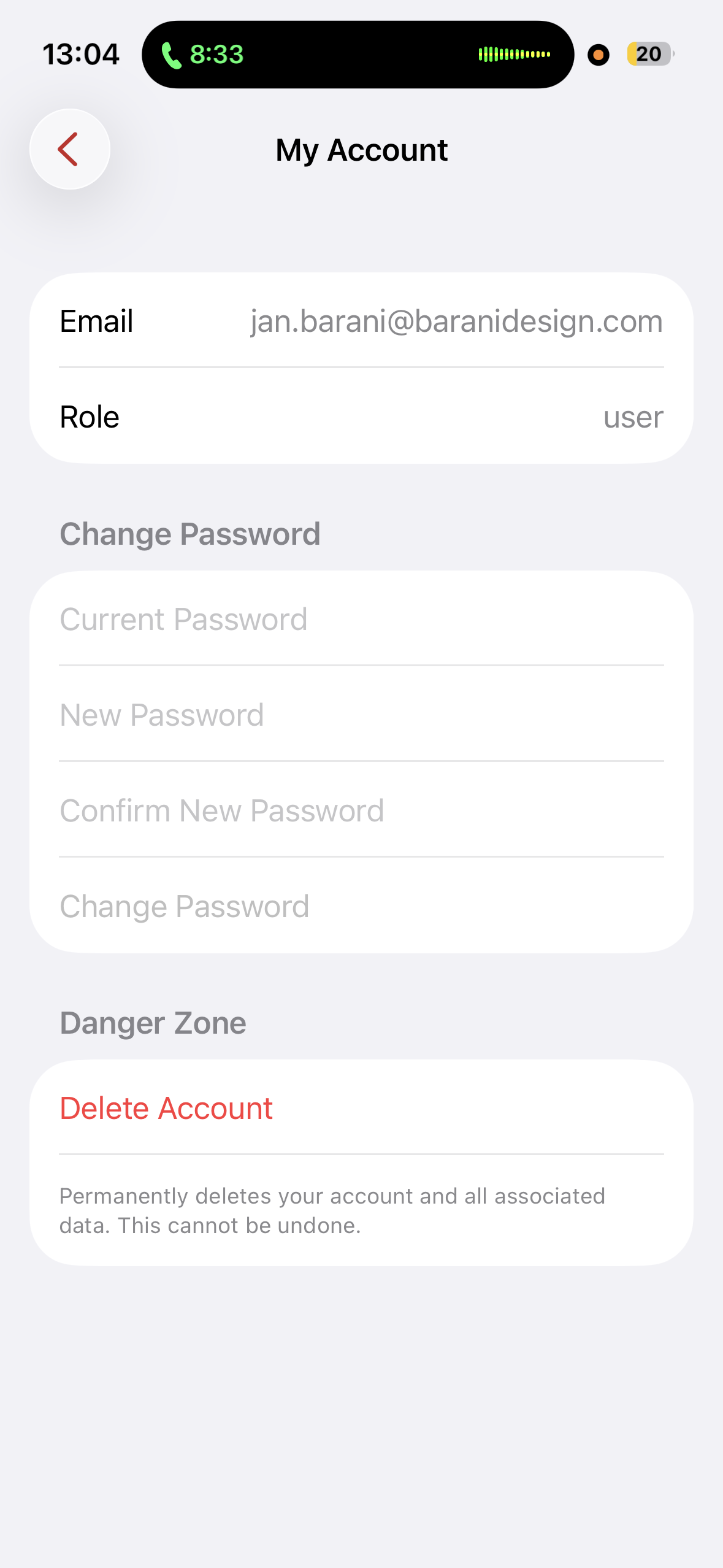
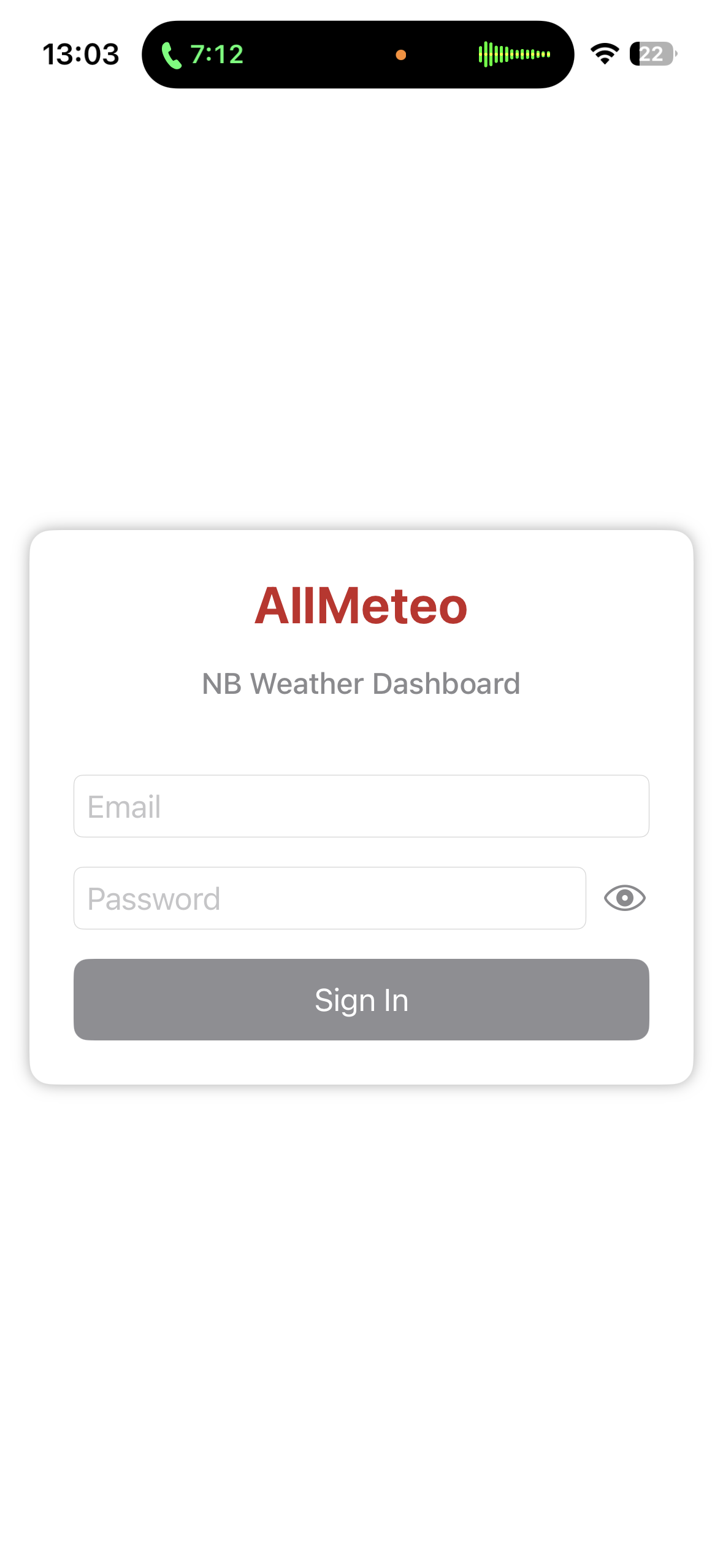
Yes. allMeteo displays devices assigned to a signed-in account. Use the credentials provided by BARANI or your organisation's account administrator. If you can sign in but no devices appear, ask the administrator to check your device access or contact BARANI support .
App tour
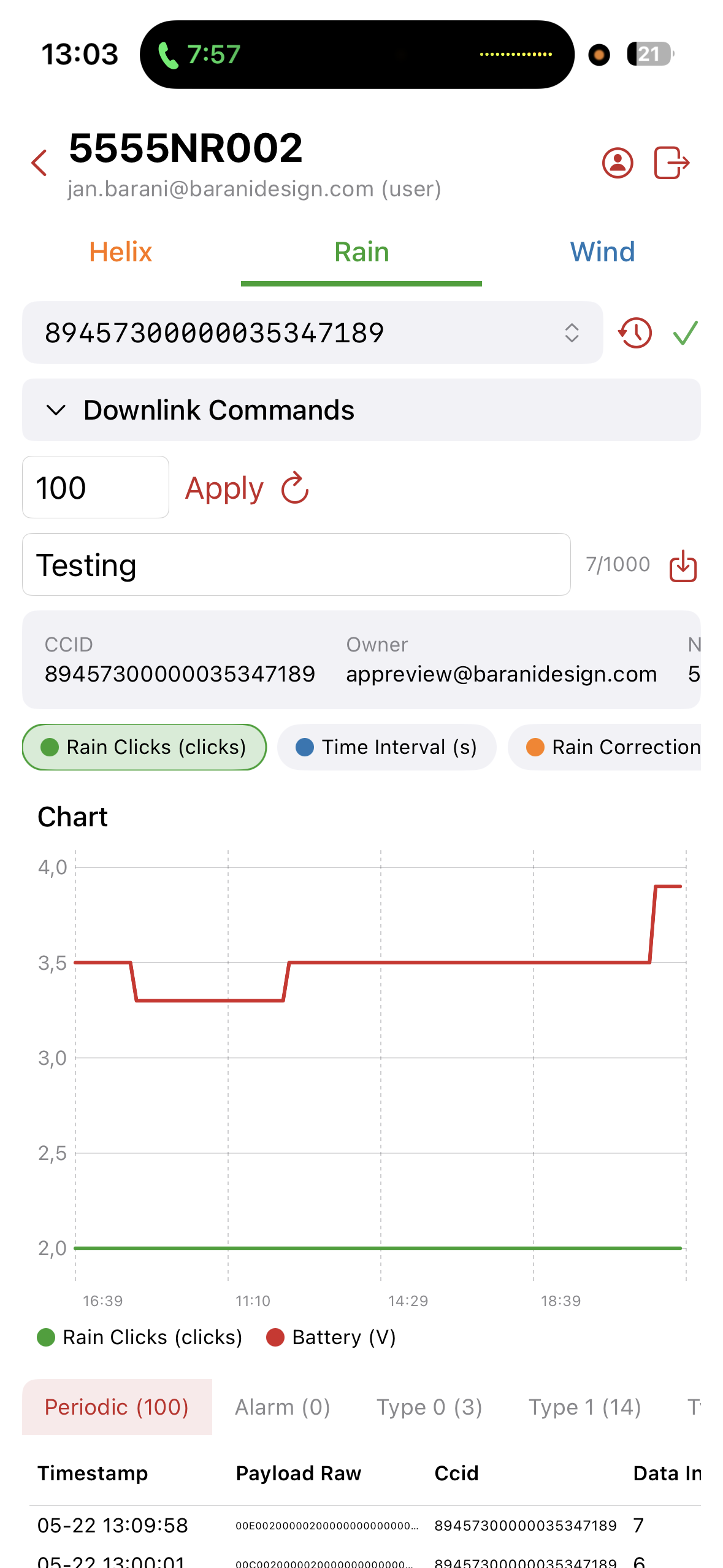
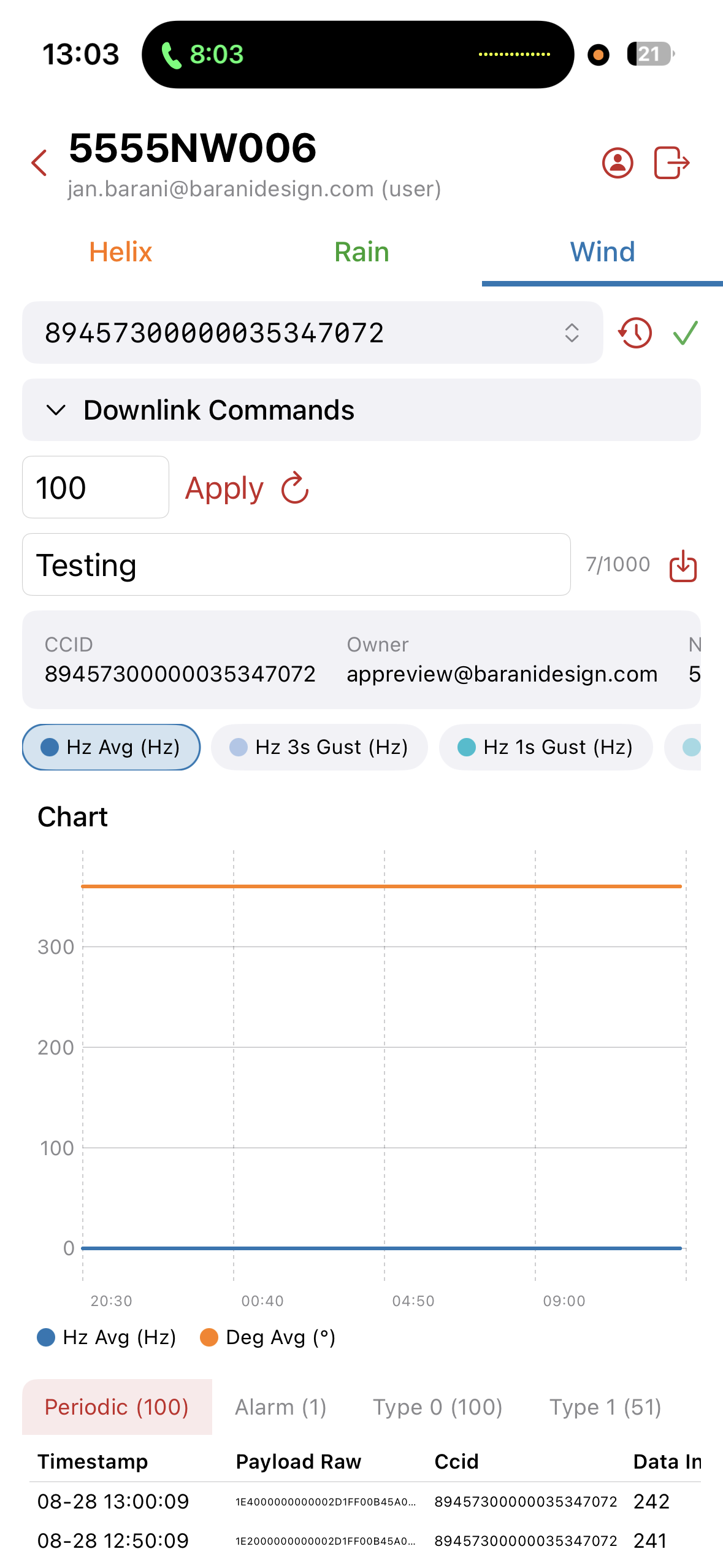
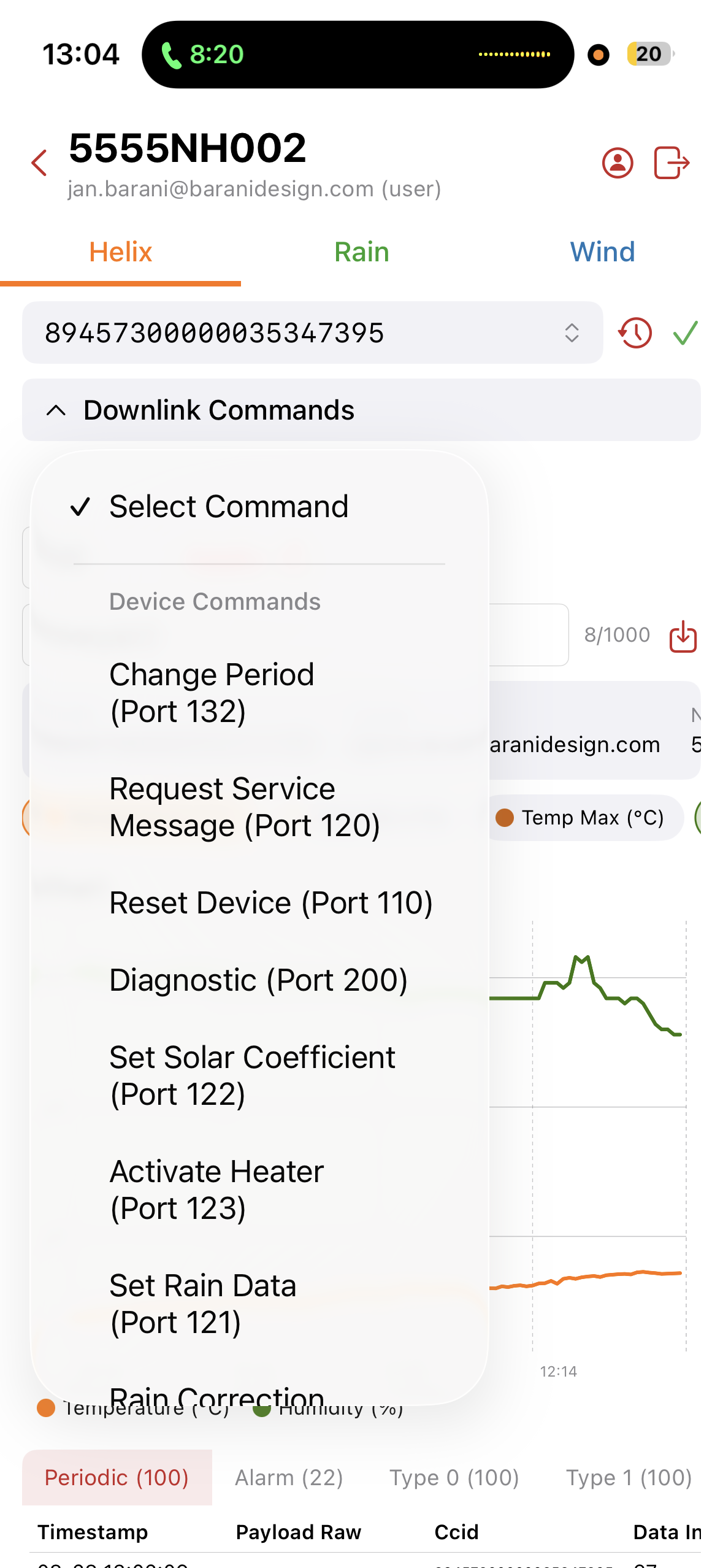
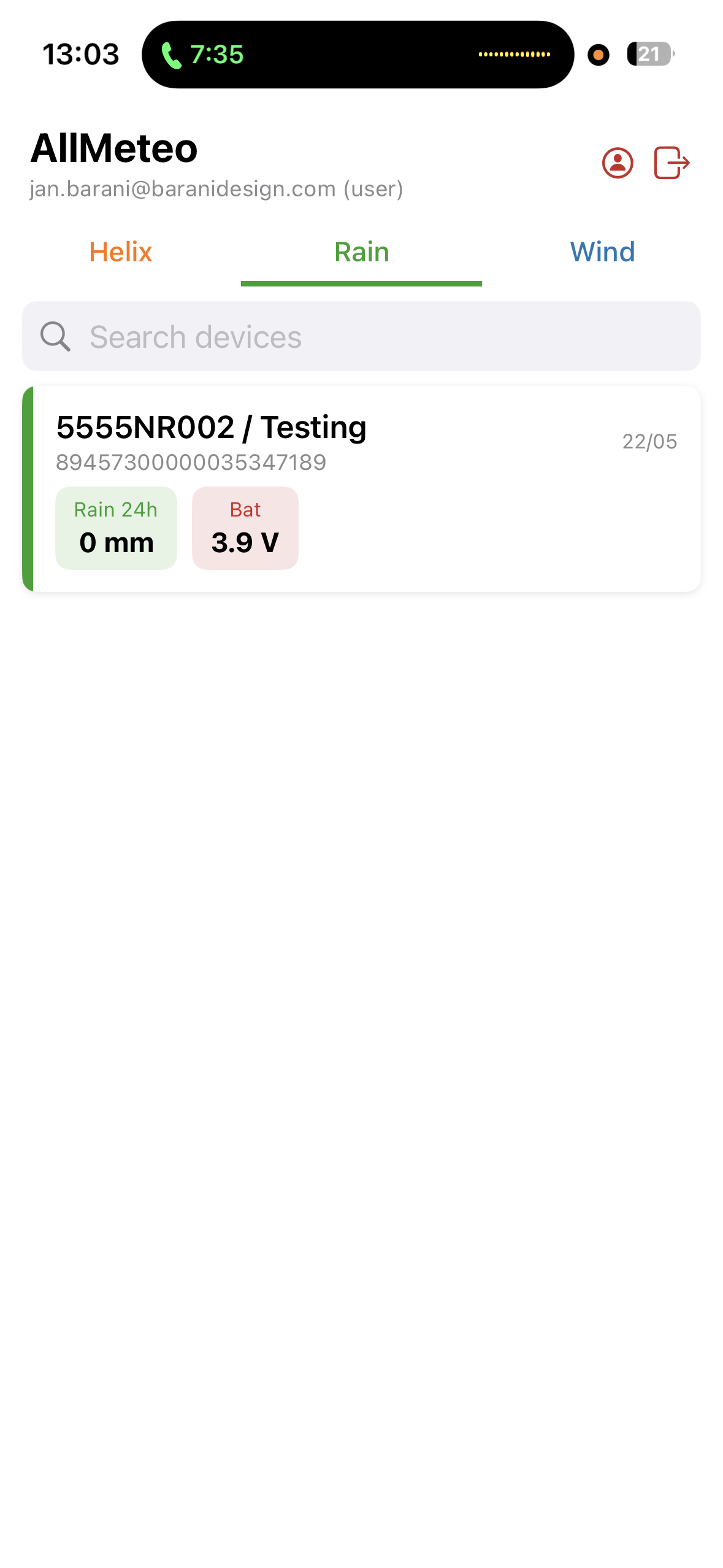
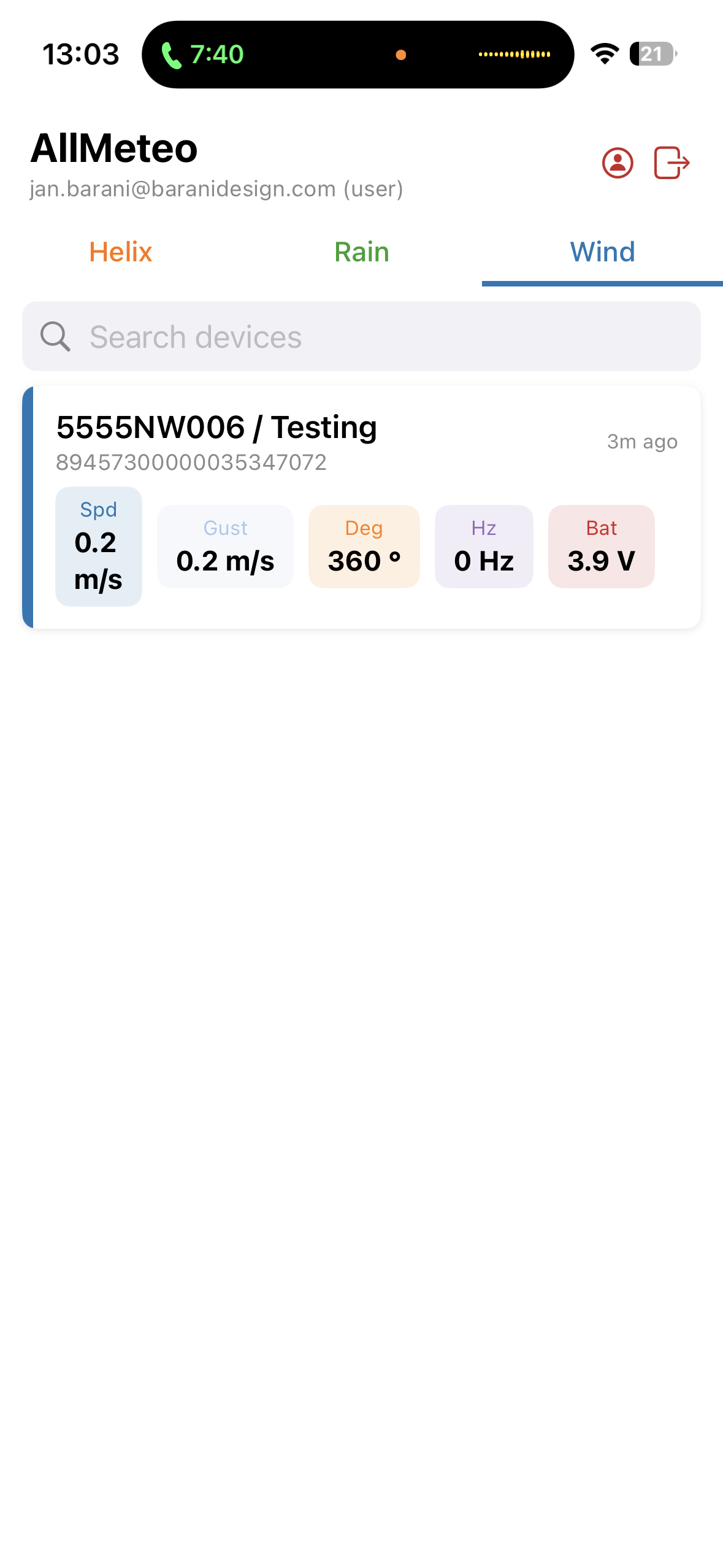
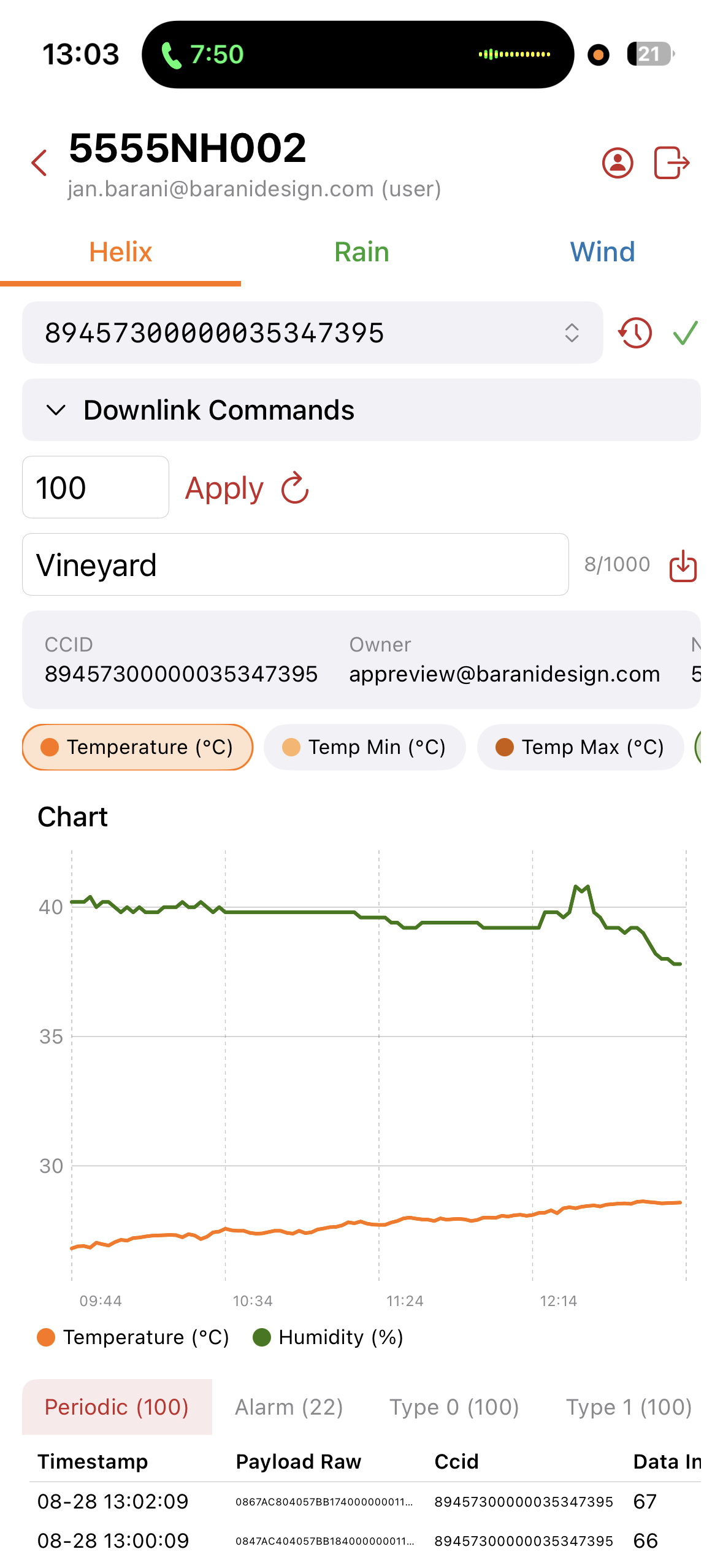
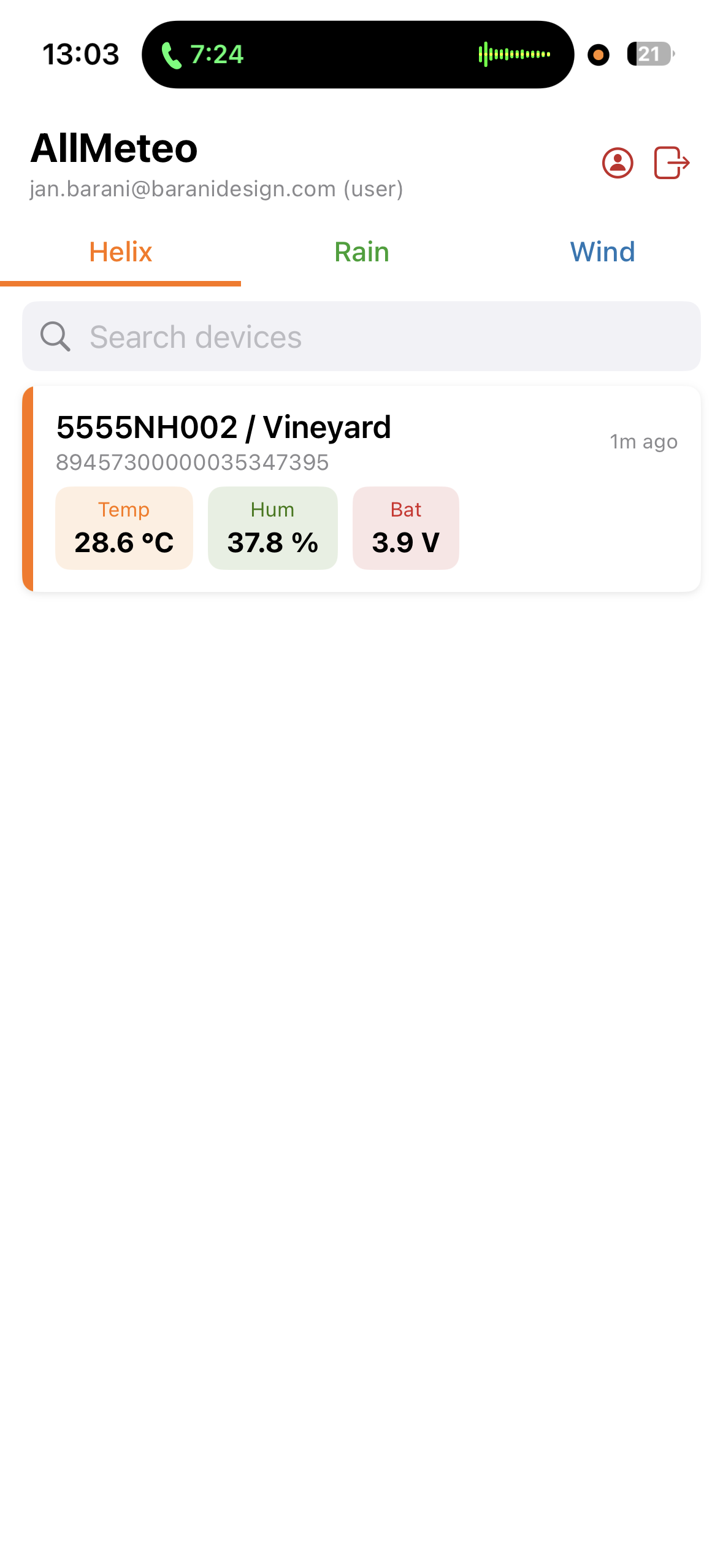
The gallery below shows the device overview, measurement detail, message history, device selector and permission-dependent administrator commands. Available screens can vary by app version, device, operating system and account role.
Using the app
What information appears for each device?
The device list can show the device name, CCID, latest key values, battery voltage and how recently the app received data. The detail view can include:
- CCID, name, firmware version and hardware version
- Selectable measurement charts, including minimum and maximum series where available
- Periodic, Alarm, Type 0 and Type 1 message categories
- Message timestamps, raw payloads and related device information
Not every product reports the same measurements or message types.
How do I find or switch devices?
Select the relevant Helix, Rain or Wind tab. Use the search field to filter the device list, or open the device selector and choose the required CCID. Confirm both the device name and identifier before using an administrator command.
Can I configure a device from the app?
The version shown includes a Downlink Commands menu. Visible command types include:
- Change Period
- Request Service Message
- Reset Device
- Diagnostic
- Set Solar Coefficient
- Activate Heater
- Set Rain Data and Rain Correction
Command availability and effect depend on the selected device, firmware, network and account permissions. A command appearing in the menu is not a reason to use it on an operational station without the applicable product instructions.
Important: Verify the selected device and every entered value before applying a command. Reset and configuration commands can interrupt reporting or change device behaviour. If uncertain, contact support first.
How quickly does a device react to a downlink command?
Do not assume that a remote command is immediate. Delivery depends on the device, network and communication schedule, and a command may wait for the device's next communication opportunity. Check the status or confirmation provided by the app and allow the device's normal reporting interval before repeating the command.
Troubleshooting and support
I signed in, but no devices appear
Clear the search field and check all three device-family tabs. If the list remains empty, ask your organisation's administrator to confirm that devices are assigned to your account. If BARANI manages your access directly, use the support form below.
A device shows old data
Check the last-update information in the device list, confirm that your phone has internet access and compare the device with the allMETEO web service . Allow one normal reporting interval for another message. If the device remains stale, contact support rather than repeatedly sending reset or configuration commands.
I forgot my password
Ask your organisation's account administrator for the approved password-recovery process. If BARANI manages the account directly, contact support. Never send an existing password, authentication code or access token in a support request.
Which phones and operating-system versions are supported?
For Apple devices, check the Compatibility section of the current Apple App Store listing for the minimum iOS version and supported devices.
The Android store destination and Android compatibility information are currently marked TBD. The Android panel above will be updated when the confirmed public listing is available.
Operating-system requirements can change with a new app release, so this page does not hard-code a version number.
How is my personal information handled?
Review the BARANI privacy policy for information about personal data and account-data requests. Do not put credentials, authentication codes or complete device identifiers in ordinary email.
Where do I get help?
Use the BARANI technical-support form or email info@baranidesign.com . Include the app version, phone model, operating-system version, device family, the last four characters of the device identifier and the approximate time the issue occurred.
Before attaching a screenshot, hide names, email addresses, complete CCIDs, credentials and unrelated customer data.
allMeteo support
For access, device-data or downlink-command questions, contact BARANI and include only the minimum information needed to identify the problem.
Last reviewed: 2 September 2026